Copy My Data: Transfer Content
Red Sky LabsTools
4.34.24K Reviews
- Version
- 70.3.1
- Installs
- 50.00M
- Age Rating
- Everyone
Screenshots
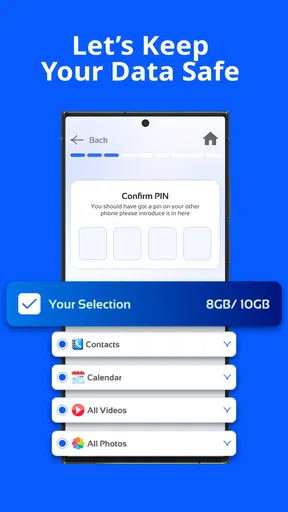
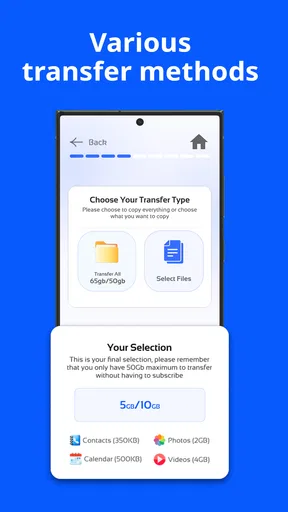
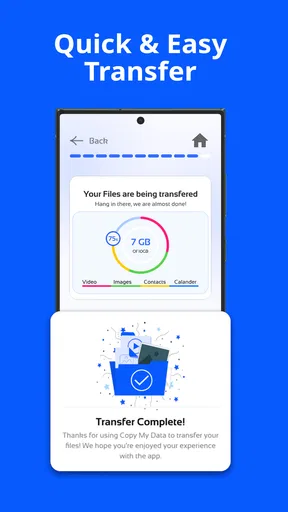
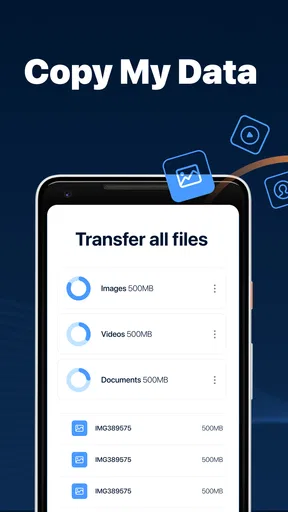
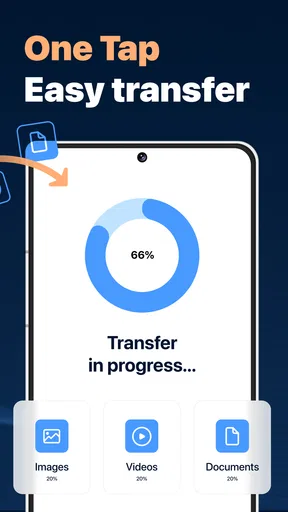
Our Review of Copy My Data: Transfer Content
 Analysis by Appyee
When a phone in a shared household is replaced, the tricky part is often not moving files but figuring out whose contacts, photos, and calendar details should go where. I find Copy My Data most useful when two people can sit down with both phones, check what they want to move, and treat the transfer as a deliberate handover rather than a quick tap-through. It is a free tools app from Red Sky Labs, rated for Everyone, and its basic appeal is practical: move selected personal content between phones over Wi-Fi without making a cable the centre of the process.
A phone swap that works better with a little planning
Picture someone in the household getting a new phone while the old one is still available. Before starting, I would have both devices nearby, make sure they can join the same Wi-Fi network, and agree which phone is the source and which is the destination. That simple pause matters when a device has been shared: a photo library or contact list may contain more than one person’s material, and a transfer should not be treated as a way to sort out ownership after the fact.
The app is designed around a direct device-to-device transfer, which makes it a sensible option when the goal is to copy everyday items such as contacts, calendars, photos, and videos. It is not a household organiser, though. I would not expect it to separate profiles, decide which family member owns a file, or coordinate several people’s accounts. Those boundaries need to be settled by the users before they begin.
For a parent helping a relative set up a replacement phone, the useful approach is to let the phone’s owner review what is being moved and remain involved at each step. That is more considerate than treating the transfer as a purely technical chore, especially if the old device includes private conversations or personal images outside the kinds of content being copied. A clear handover also reduces the chance of the wrong person ending up with someone else’s information.
What to check before connecting the phones
Copy My Data works best as a focused transfer tool, not as a substitute for checking the destination phone first. I would confirm that the receiving device is ready for the information being copied and that the person using it wants those items there. If the destination is already in use, think through whether adding contacts or calendar entries will create clutter or overlap with information already present. Taking a moment to inspect the phones’ existing content can prevent a rushed transfer from becoming a cleanup job.
It is also worth being realistic about the network. Both phones need access to the same Wi-Fi network, so a household guest network, weak signal, or a router that needs attention can turn a straightforward task into a stop-and-start one. I would avoid beginning when either device is about to leave the house or when the network is already unreliable. If a transfer pauses or takes longer than expected, staying nearby and checking the connection is more useful than repeatedly restarting without knowing what went wrong.
One practical tip is to plan around the size and importance of the material. A short transfer of contacts is a different commitment from moving a large collection of photos and videos. If time is limited, decide what needs to move first and leave the larger job for a moment when both phones can remain together. That makes the process easier to supervise and gives the recipient time to check the results before the old phone is put away or reset.
Coordinating a transfer across people and platforms
Because the app is available on Android and iOS, it can be helpful when a household member changes platform rather than simply upgrading to another phone of the same type. That cross-platform usefulness is one of the stronger reasons to consider it over a method tied to a single phone ecosystem. Still, I would not assume every detail of a phone moves just because the app handles useful categories of personal data. For a complete device migration, compare the transfer options offered by the phone maker as well, particularly if you rely on settings, app data, or other content beyond contacts, calendars, photos, and videos.
That comparison is not a knock against the app; it is about choosing the right scope. A built-in migration tool may be a better fit when you want to move as much of a phone’s setup as possible in one go. Cloud syncing may suit someone who already keeps their contacts or calendar in an account and wants those items to appear on multiple devices over time. Copy My Data is more appealing when the immediate task is moving supported personal content directly between two phones without turning the process into a longer account-management project.
In a family handover, I would make one person responsible for reading the screens and another responsible for confirming that the content belongs on the destination device. This small division of attention can catch mistakes early: the person operating the app can focus on the steps, while the phone’s owner can check that the chosen transfer makes sense. It is not a special family feature, just a sensible way to reduce confusion when several people are helping.
Age, trust, and realistic expectations
The Everyone age rating makes the app broadly suitable for general audiences, but a rating is not a replacement for adult guidance when a child is using a shared or family phone. I would keep the device owner involved and explain that transferring information can place personal material on another device. The app’s straightforward purpose is easy to understand; deciding what should be shared still calls for ordinary care and good household boundaries.
Privacy is also best approached carefully. A direct transfer can feel more controlled than uploading material to a general cloud service, but no transfer method removes the need to trust the people and devices involved. Before copying, make sure the destination belongs to the intended person and that the receiving phone is not simply being borrowed by someone else. If a device is shared, agree in advance who will have access to its contents afterward.
The app has a 4.3 average from around 252,000 ratings, and it has passed 50 million installs. Those figures suggest that many people have turned to it for phone-to-phone moves, but they do not guarantee that every transfer will be equally smooth on every device or network. The current version is 5.1.1, and the app requires Android 7.0 or later on Android. It is free to install, with optional in-app purchases ranging from $2.99 to $79.99 per item, so I would check the purchase screen carefully and avoid assuming every option is included at no cost.
Getting Started with Copy My Data
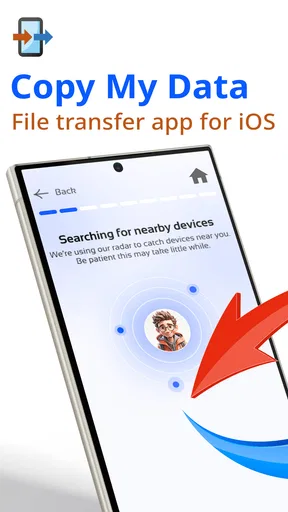
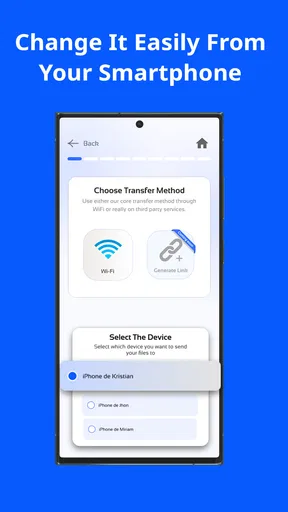
The first thing you'll notice about Copy My Data is how straightforward it is to set up. After downloading the app on both your old and new devices, you simply connect them to the same Wi-Fi network. It's pretty seamless, and the app guides you every step of the way, which is a blessing if you're not particularly tech-savvy.
Once both devices are connected, you can start the transfer process. The app supports a variety of file types, including contacts, calendars, photos, and videos. This is particularly handy if you have tons of media files that you can't afford to lose. There's no need for cables or complicated setups, which is a relief for anyone who's juggling multiple devices.
User Experience
One of the things I appreciated about the app is its user-friendly interface. It's clean, intuitive, and doesn't bombard you with unnecessary options. The app's design focuses on simplicity, making it accessible for users of all ages. I found the transfer process to be quick and efficient, although the speed can vary depending on the amount of data you're moving.
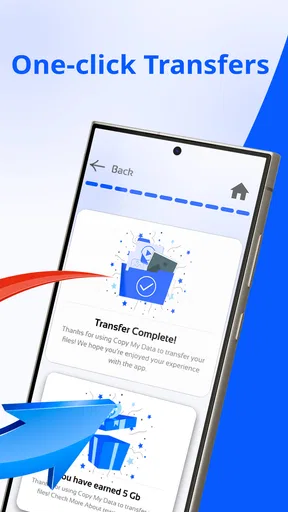
Throughout the process, the app provides clear instructions and updates, so you always know what stage the transfer is at. This transparency is crucial, especially when dealing with something as important as your personal data. Plus, there's a certain peace of mind knowing that everything is being handled securely.
Compatibility and Performance
Copy My Data is available for both Android and iOS, which is great news if you're switching between these platforms. However, it's worth noting that the app performs best when both devices are relatively new and updated to the latest OS versions. In my experience, using the app on older devices might result in slower transfer speeds or occasional glitches.
Another point to consider is the app's reliance on a stable Wi-Fi connection. If your network is spotty, you might encounter some hiccups along the way. But assuming your Wi-Fi is up to the task, the app works like a charm. I was able to transfer a substantial amount of data without any significant issues.
Privacy and Security
Security is a big concern when it comes to transferring personal data, and thankfully, Copy My Data takes this seriously. The app ensures that your data is only transferred between the devices involved and isn't stored on any servers. This local transfer method reduces the risk of data breaches, which is a huge plus in my book.
Additionally, the app doesn't require creating an account or signing in, which means less personal information is collected. It's a straightforward, no-nonsense approach that respects user privacy.
Final Thoughts
Overall, Copy My Data does exactly what it promises. It's a reliable, hassle-free solution for anyone looking to transfer data between devices without the usual headaches. While it's not perfect—occasional speed issues and Wi-Fi dependency can be frustrating—it excels in making the process simple and secure.
For anyone planning a device upgrade or just needing to move files around, this app is definitely worth considering. It's a small download with a big impact, and in today's fast-paced digital world, that's exactly what we need.
Verdict
Strengths of Copy My Data: Transfer Content
- Simple interface for easy navigation.
- Quick transfer between devices.
- No need for a computer connection.
- Supports multiple file types.
- Cross-platform compatibility.
Limitations of Copy My Data: Transfer Content
- Requires Wi-Fi for transfers.
- Limited to local transfers only.
- No cloud storage integration.
- Occasional connection issues.
- Not suitable for large data files.
Other Releases by Red Sky Labs
View All
Muzio I Music Player & MP3 App
Music & Audio3.5

QR Scanner - QR Code Scanner
Productivity4.0
Similar Picks in This Category
View All
Google LLC4.0

Gboard - the Google Keyboard
Google LLC4.5

Google Play services
Google LLC4.3

Google Play Store
Google LLC4.9

Files by Google
Google LLC4.5

SHAREit: Transfer, Share Files
Smart Media4U Technology Pte.Ltd.4.3
Frequently Asked Questions
What is Copy My Data and what does it do?
Copy My Data is an app designed to simplify the transfer of content between smartphones. It enables users to quickly and securely copy contacts, calendar events, photos, and videos from one device to another. This is especially useful when upgrading to a new phone or switching between different operating systems.
Is Copy My Data compatible with both Android and iOS devices?
Yes, Copy My Data is compatible with both Android and iOS devices. The app supports seamless data transfer across these platforms, making it easy for users to switch from one operating system to another without losing important information like contacts and photos.
How secure is the data transfer process with Copy My Data?
Copy My Data ensures a secure data transfer process by using a local Wi-Fi network. This means your data is not uploaded to the internet, reducing the risk of unauthorized access. Always ensure you are connected to a secure and private Wi-Fi network to enhance security during the transfer.
Do I need technical skills to use Copy My Data effectively?
No, Copy My Data is designed with user-friendliness in mind. The app provides a straightforward interface with step-by-step instructions, making it accessible for users with any level of technical expertise. Simply follow the prompts within the app to complete the transfer process efficiently.
Are there any costs associated with using Copy My Data?
Copy My Data is available for free download on both Android and iOS platforms. However, be aware that using mobile data during the transfer process may incur charges depending on your data plan. It is recommended to use a Wi-Fi connection to avoid any potential costs.
